
ThinC Manager Functionality
Manage ThinC-COMPUTE USB
Ensure that tool is installed in required computer before proceeding further [refer to installation section in the manual for installing]. To start managing, connect the ThinC-Vault to computer USB port, the device would power on, initialize and install necessary drivers automatically and await to read fingerprint or enroll fingerprints.
|


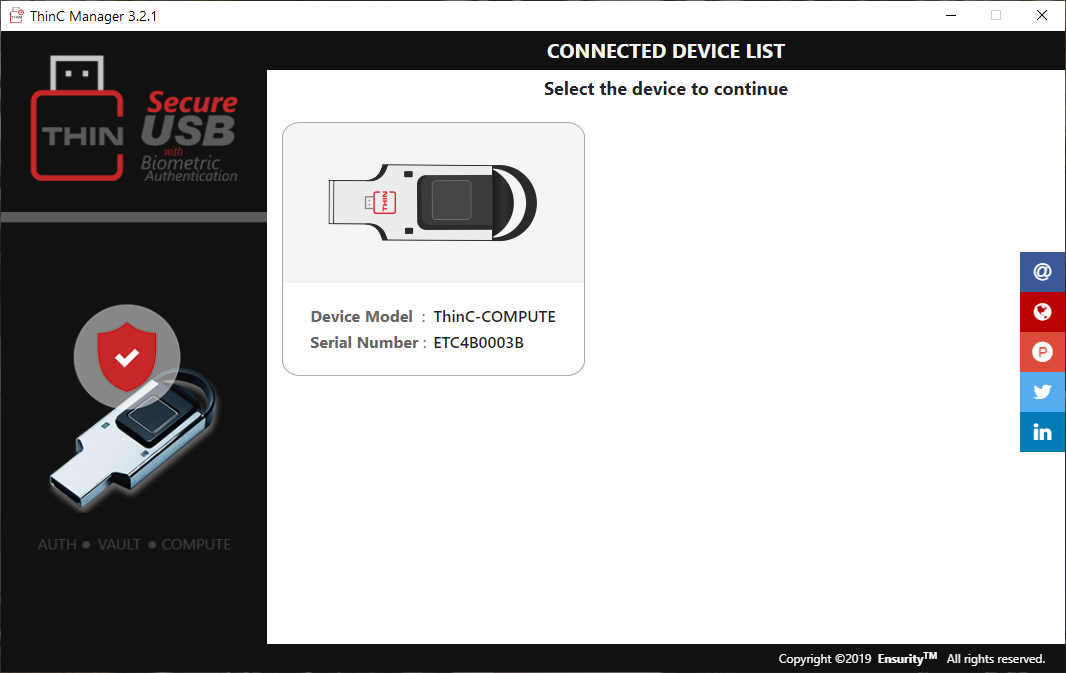
- Open ThinC Manager tool application and click on the device that needs to be managed.
|
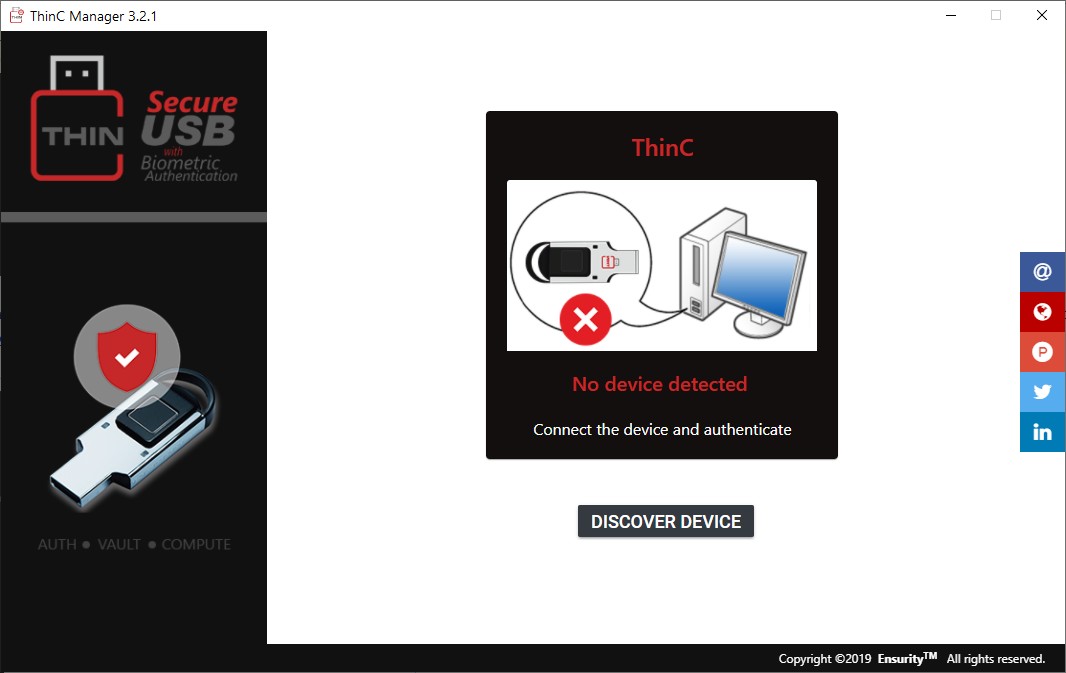
- If the device is not connected properly or not available in computer, the below screen would be displayed prompting the user to reconnect the device. If it continues to be unrecognized device, please contact thinc.support@ensurity.com.
|